Think about everything stored on your phone and computer: years of photos and videos, important documents, work projects, and personal records. Now imagine losing it all in an instant because of a dropped phone, a failed hard drive, theft, ransomware, or simply hitting delete by mistake.
Data loss happens to people every day, and it is often permanent. Yet a reliable backup system is easier and cheaper to set up than most people think. Here is a simple guide to protecting your digital life.
Why Backups Matter
Devices fail, often without warning. Storage drives wear out, phones get lost or broken, laptops are stolen, and malicious software can encrypt or delete files. Cloud services can also suffer account problems or accidental deletions that sync across devices. A backup is a separate copy of your data that lets you recover when something goes wrong.
Syncing Is Not the Same as Backing Up
Many people assume that because their files are in the cloud, they are backed up. Not necessarily.
- Sync keeps the same files identical across devices. If you delete or corrupt a file on one device, that change may sync everywhere.
- Backup keeps separate copies, often including older versions, so you can restore files even after they were deleted or changed.
Some cloud services offer version history and recently deleted folders, which help, but they usually keep those copies for a limited time. A true backup strategy goes further.
The 3-2-1 Backup Rule
The 3-2-1 rule is a widely used, easy-to-remember strategy.
- 3 copies of your important data: the original plus two backups.
- 2 different types of storage, such as your computer’s drive and an external drive.
- 1 copy off-site, such as cloud backup or a drive stored at another location.
This protects you against many scenarios: a single device failing, a fire or theft at home, or one backup turning out to be corrupted.
Step 1: Decide What to Back Up
Start by identifying what you cannot afford to lose.
- Photos and videos
- Personal documents: identification scans, tax records, contracts, insurance papers
- Work files and creative projects
- Music, writing, and other personal collections
- Password manager exports or recovery codes, stored securely
Operating systems and apps can usually be reinstalled, so focus on your personal files.
Step 2: Back Up Your Phone
Phones hold many of our most precious memories.
- Turn on your phone’s built-in cloud backup for settings, apps, and messages.
- Enable automatic photo backup to a cloud photo service.
- Periodically download a copy of your photos and videos to a computer or external drive as an extra layer.
- Check that backups are completing, especially if your cloud storage is nearly full.
Step 3: Back Up Your Computer
Use an External Drive
Most operating systems include free backup tools that can automatically copy your files to an external drive and keep older versions. Connect the drive regularly, or leave it connected if you have a desktop.
Add Cloud Backup
Cloud backup services automatically copy your files to secure off-site servers. Choose a service that offers version history and encryption, and enable automatic backups.
Consider a Network Drive
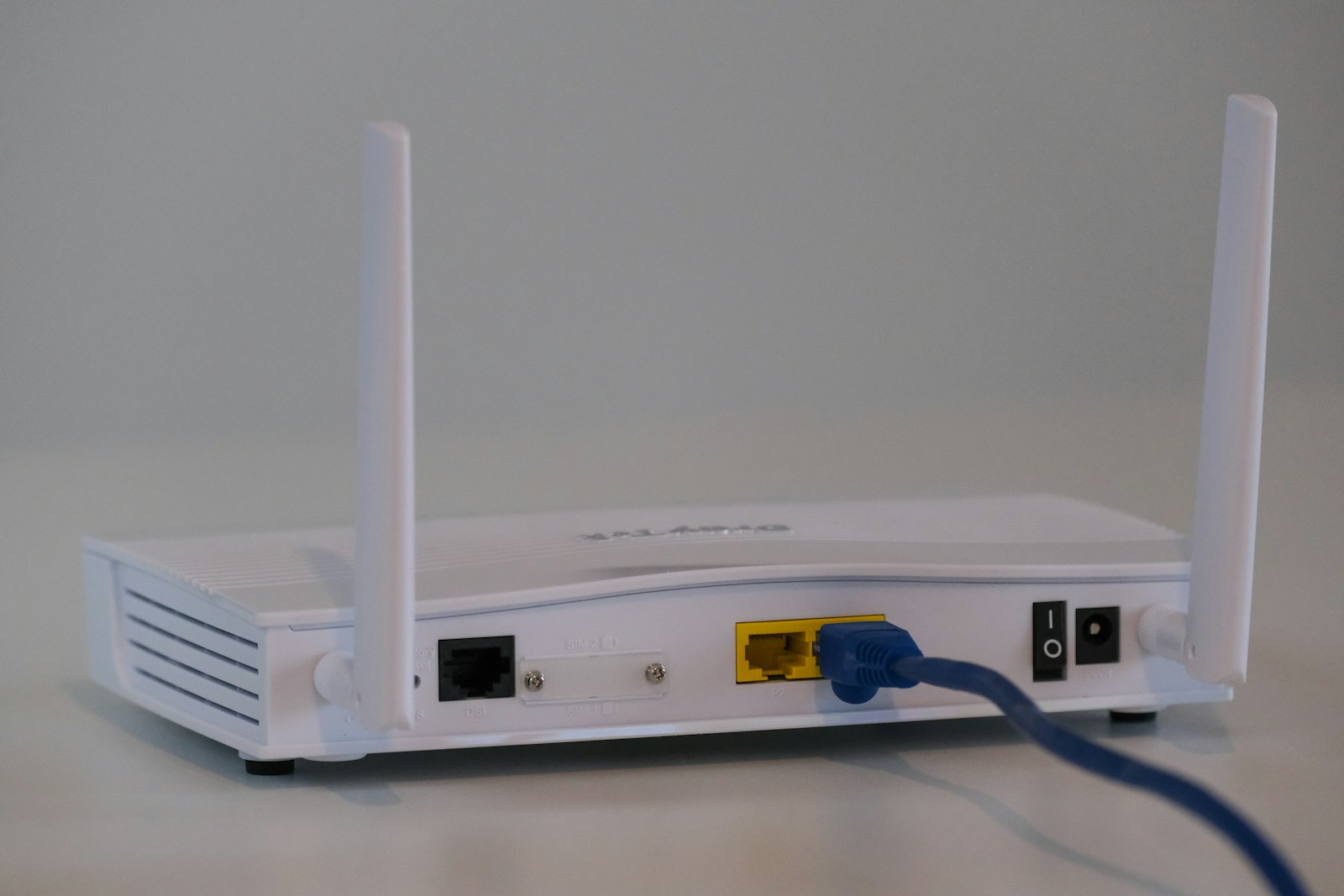
For households with multiple computers or lots of photos, a network-attached storage (NAS) device can store backups for everyone. Pair it with a cloud copy for off-site protection.
Step 4: Automate Everything
The best backup is one you do not have to remember. Schedule automatic backups wherever possible. Manual backups tend to be forgotten during busy periods, which is exactly when data loss seems to strike.
Step 5: Test Your Backups
A backup you cannot restore is not a backup. Every few months, try restoring a few files from each backup to make sure they open correctly. Check that automatic backups are still running and have not been paused due to full storage or an expired subscription.
Protect Your Backups
- Encrypt sensitive data, especially on portable drives.
- Secure your cloud accounts with strong passwords, passkeys, or two-factor authentication.
- Disconnect one backup from your computer when not in use, which helps protect it from ransomware.
- Store an external drive in a safe place, ideally away from your home or in a fire-resistant container.
Choosing Storage Options
External Hard Drives and SSDs
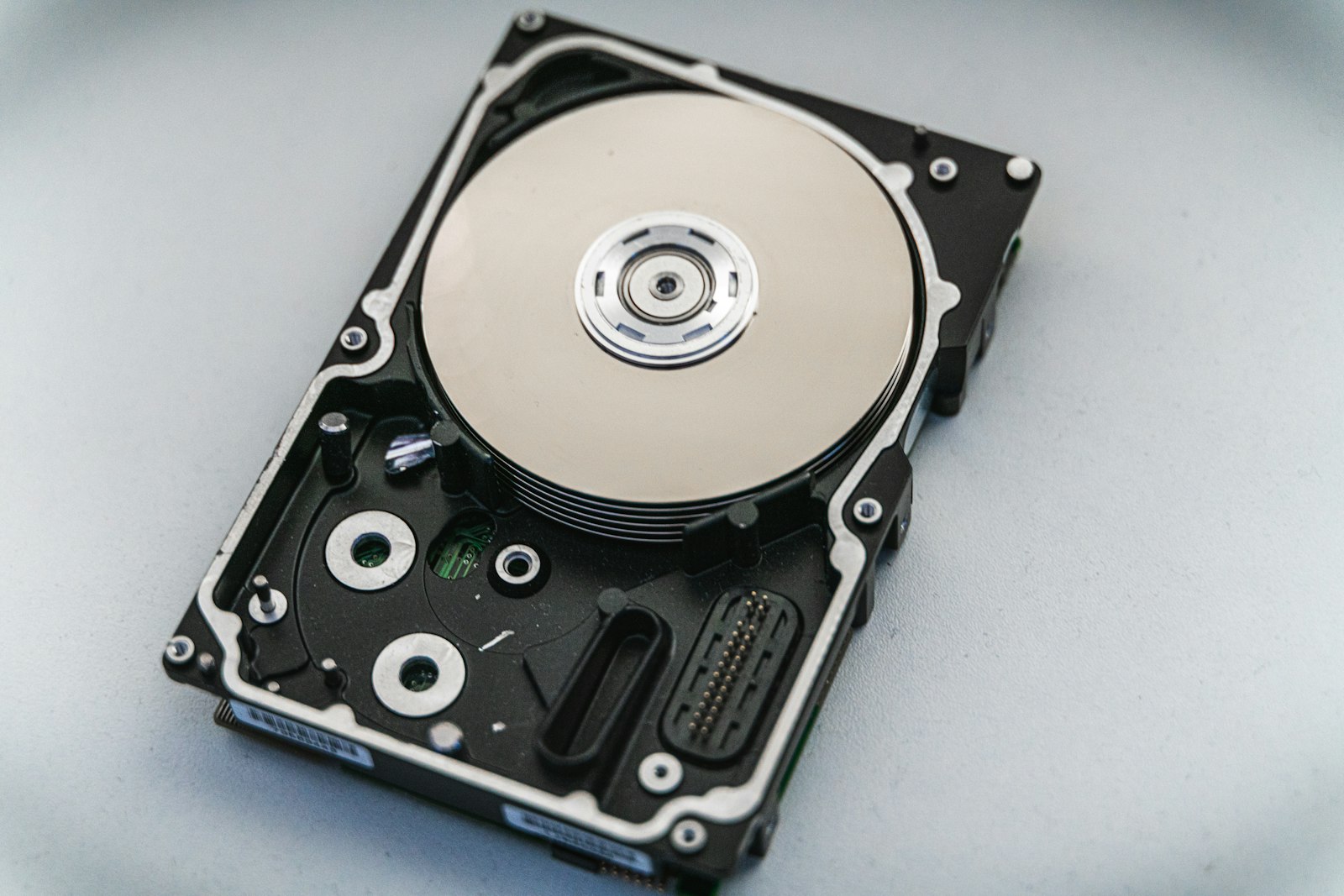
Affordable and simple. Solid-state drives (SSDs) are faster and more durable, while traditional hard drives offer more storage per dollar. All drives eventually fail, so replace them every several years.
Cloud Storage and Backup
Convenient and off-site, with automatic backups. Consider storage size, cost, privacy, and version history.
USB Flash Drives
Useful for small amounts of data, but easy to lose and not ideal for long-term backups.
Organize as You Go
Backups are easier when your files are organized. Delete duplicates and blurry photos, use clear folder names, and keep important documents in one place. Organization also makes it far easier to find what you need when restoring.
Frequently Asked Questions
How often should I back up?
Ideally continuously or daily with automatic tools. At minimum, back up weekly and after important changes, such as a vacation or a big work project.
Is cloud storage alone enough?
It is a great off-site copy, but combining it with a local backup gives better protection and faster recovery.
How long do external drives last?
Lifespans vary, but it is wise to check drive health regularly and replace drives after several years.
The Bottom Line
Losing irreplaceable photos and files is painful, but it is largely preventable. Follow the 3-2-1 rule, automate backups for your phone and computer, keep one copy off-site, and test your backups regularly. An hour of setup today can save years of memories tomorrow.