For decades, passwords have been the main way we prove who we are online. They have also been one of the weakest links in digital security. People reuse them, choose easy-to-guess ones, forget them, and fall for phishing sites that trick them into typing them in. Data breaches regularly expose millions of passwords at a time.
Passkeys are designed to fix this. Backed by major technology companies and an industry standards group, passkeys are increasingly supported by popular websites, apps, and devices. Here is what they are, how they work, and how to start using them.
What Is a Passkey?
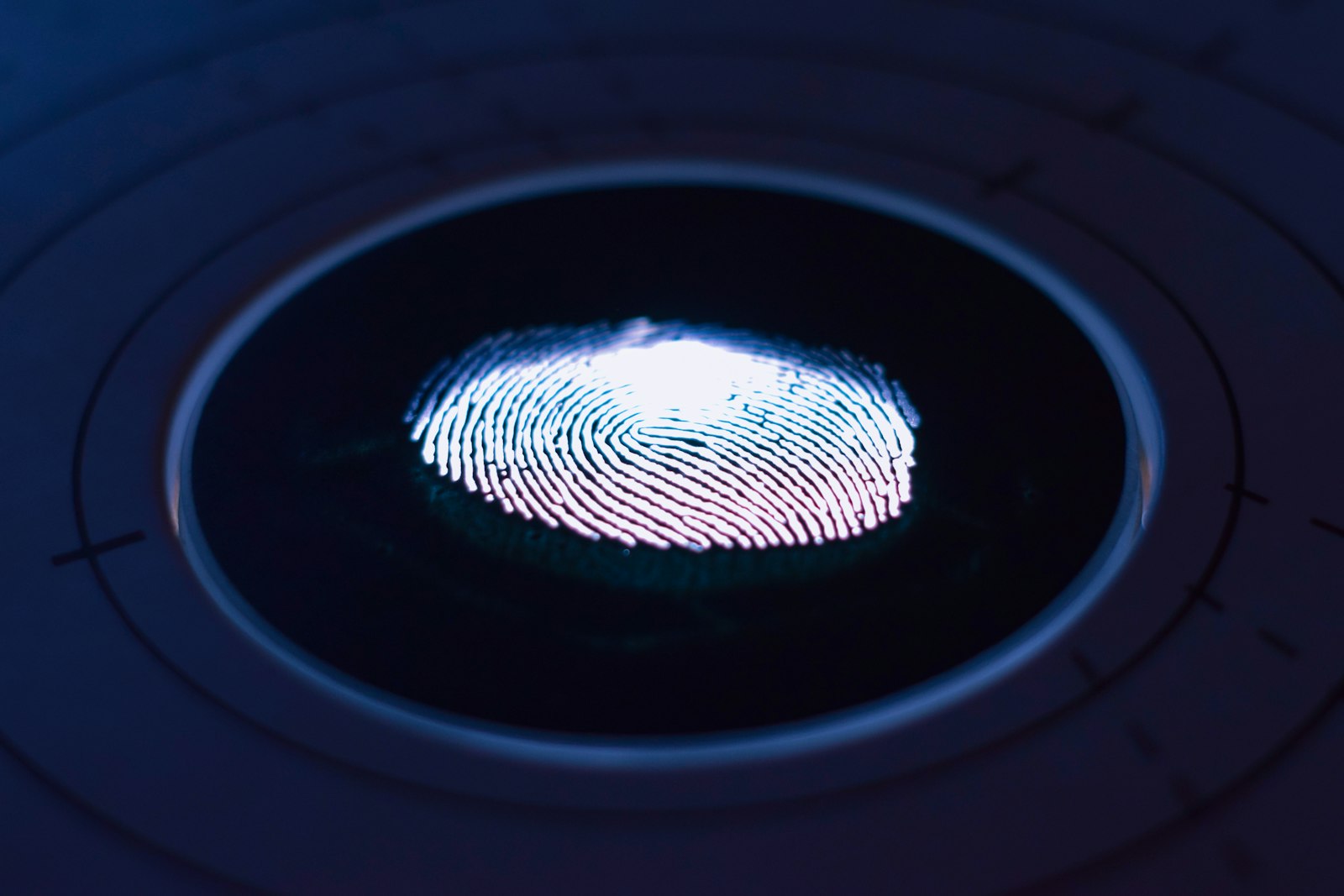
A passkey is a way to sign in to an account without a password. Instead of typing a secret you have to remember, you sign in using a device you already have, such as your phone, computer, or a hardware security key, and unlock it with your fingerprint, face, or device PIN.
To you, signing in with a passkey feels like unlocking your phone. Behind the scenes, it relies on strong cryptography.
How Passkeys Work (Without the Jargon)
Passkeys are built on an approach called public-key cryptography.
- When you create a passkey for a website, your device generates a pair of linked keys: a public key and a private key.
- The website stores only the public key. On its own, it cannot be used to sign in.
- Your device keeps the private key securely and never shares it with the website.
- When you sign in, the website sends a challenge. Your device uses the private key to sign it, after you confirm with your fingerprint, face, or PIN.
- The website checks the response using the public key. If it matches, you are in.
Because the private key never leaves your device and is never sent to the website, there is nothing for hackers to steal from the website’s servers that would let them log in as you.
Why Passkeys Are Safer
They Resist Phishing
Each passkey is tied to the specific website or app it was created for. If a scammer builds a fake look-alike site, your device will not offer your passkey for it. This removes one of the most common ways accounts are stolen.
Nothing to Leak in a Breach
Websites store only public keys. Even if a company is breached, attackers cannot use those keys to access your account.
No Weak or Reused Passwords
Every passkey is unique and strong by design. You cannot accidentally reuse it across sites.
Built-In Two-Factor Protection
Signing in requires something you have (your device) and something you are or know (your biometric or PIN), combining two layers of security in a single step.
Why Passkeys Are Easier
- No passwords to remember or reset.
- Sign in with a glance or a touch.
- Passkeys can sync across your devices through your password manager or platform account, so a new phone does not mean starting from scratch.
- You can often sign in on a nearby computer by scanning a QR code with your phone.
Is Your Biometric Data Shared?
No. When you use your fingerprint or face to unlock a passkey, that check happens locally on your device. Your biometric data is not sent to the website.
How to Start Using Passkeys
1. Update Your Devices
Make sure your phone, computer, and browser are running recent software versions, since passkey support has improved over time.
2. Choose Where to Store Them
Passkeys can be saved in your device’s built-in password manager or in many third-party password managers. Choosing a manager that syncs across all the devices you use makes life easier.
3. Start With Important Accounts
Check the security settings of your email, cloud storage, banking, and social media accounts for an option to create a passkey. Begin with your primary email account, since it is often used to reset other accounts.
4. Follow the Prompts
Many sites now offer to create a passkey right after you sign in. Accept, confirm with your fingerprint, face, or PIN, and you are done.
5. Keep Recovery Options Up to Date
Make sure your account recovery methods, such as a backup email, phone number, or recovery codes, are current in case you lose access to your devices.
Things to Know Before Switching
- Not every site supports passkeys yet. You will likely use passwords and passkeys side by side for some time.
- Your devices matter more. Protect your phone and computer with a strong PIN or passcode and keep them updated.
- Shared devices need care. Avoid saving passkeys on computers other people use.
- Moving between ecosystems has become easier, but check that your chosen password manager supports the devices you plan to use.
Frequently Asked Questions
What happens if I lose my phone?
If your passkeys sync through a password manager or platform account, they will be available on your other devices or a new phone after you sign in. Account recovery options provide another safety net.
Can I still use my password?
On most sites, yes. Passkeys are usually added as an option alongside your password, though some services let you remove the password once a passkey is set up.
Are passkeys the same as two-factor authentication?
They provide similar protection in one step, because they combine possession of your device with a biometric or PIN. Some services still offer additional verification for sensitive actions.
Do passkeys work on all browsers?
Major modern browsers and operating systems support passkeys, though the exact experience varies.
The Bottom Line
Passkeys represent one of the biggest improvements in everyday online security in years. They are harder to steal, impossible to reuse, resistant to phishing, and easier to use than passwords. Start with your most important accounts, keep your devices secure, and enjoy signing in with just a touch or a glance.