Few things are more frustrating than video calls freezing, streams buffering, or a bedroom where the Wi-Fi simply does not reach. With more devices connected at home than ever, from laptops and phones to TVs, speakers, cameras, and thermostats, a strong home network is no longer a luxury.
The good news is that many Wi-Fi problems can be fixed without paying for a faster internet plan. Here is a practical guide to diagnosing and improving your home Wi-Fi.
Step 1: Figure Out Where the Problem Is
Before changing anything, find out whether the issue is your internet connection or your Wi-Fi.
- Run a speed test on a device connected directly to the router with an Ethernet cable, if possible. Compare the result with the speed your plan promises.
- Run the same test over Wi-Fi next to the router, then in rooms where the connection is poor.
If speeds are slow even with a wired connection, the issue may be with your internet provider or plan. If speeds are good near the router but poor elsewhere, your Wi-Fi coverage is the problem.
Step 2: Put Your Router in the Right Place
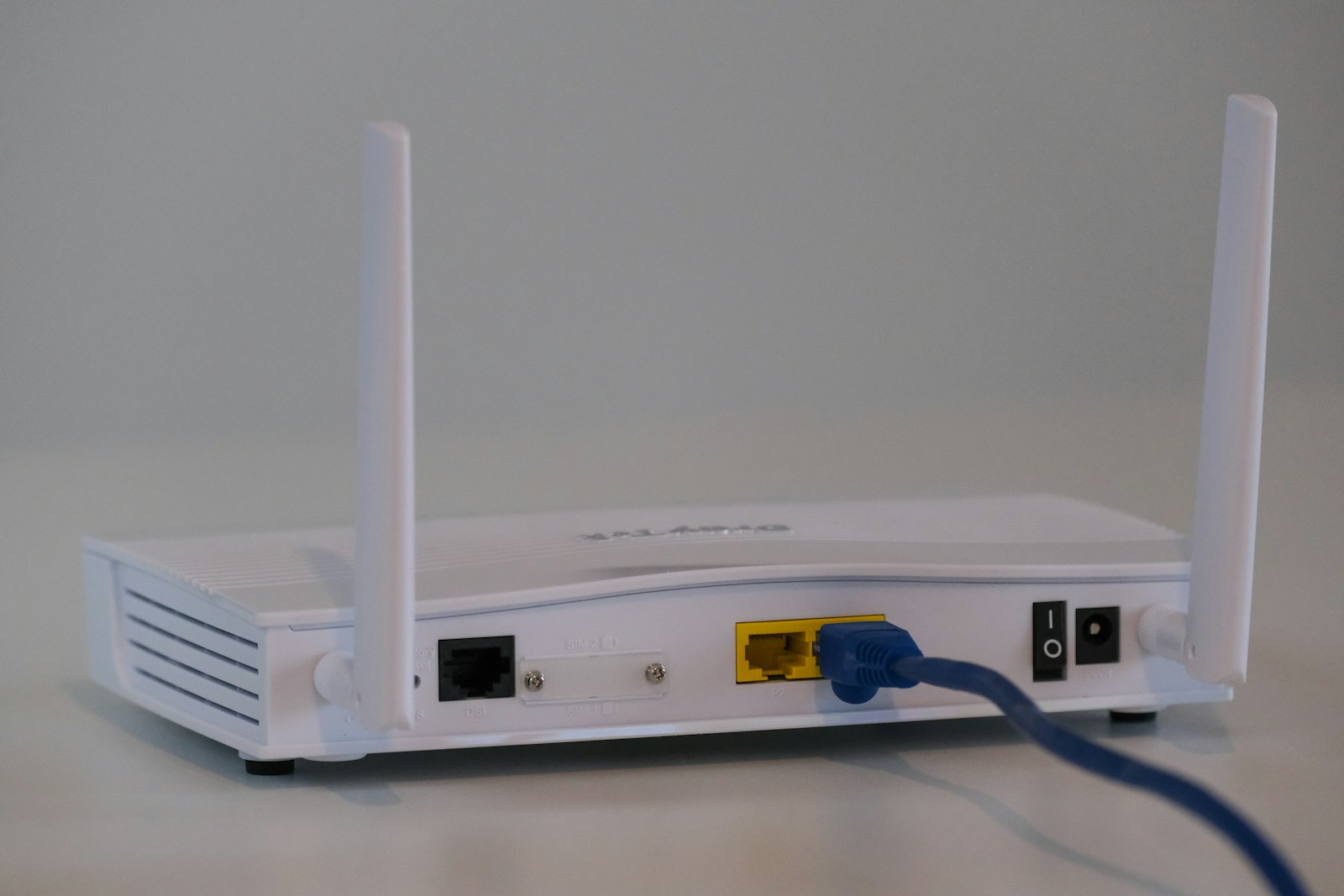
Router placement has a huge effect on performance.
- Central location: Place the router as close to the middle of your home as possible, not tucked in a corner.
- Up high: Put it on a shelf or table rather than on the floor.
- In the open: Keep it out of cabinets, away from behind the TV, and clear of thick walls.
- Away from interference: Microwaves, cordless phones, baby monitors, metal objects, mirrors, and fish tanks can weaken signals.
- Antennas: If your router has external antennas, try positioning some vertically and some horizontally.
Step 3: Restart and Update
It sounds basic, but restarting your router and modem can clear temporary glitches. Many routers also receive firmware updates that improve performance and security. Check your router’s app or admin page and enable automatic updates if available.
Step 4: Use the Right Frequency Band
Most modern routers broadcast on multiple bands.
- 2.4 GHz: Longer range and better at passing through walls, but slower and more prone to interference.
- 5 GHz: Faster with less interference, but shorter range.
- 6 GHz: Available on newer routers and devices, offering lots of capacity and speed, with even shorter range.
Many routers use “band steering” to automatically move devices to the best band. If you have connection issues, check your router’s settings, and consider connecting smart home devices to 2.4 GHz and high-bandwidth devices to 5 or 6 GHz.
Step 5: Understand Wi-Fi Standards
Wi-Fi generations matter. Newer standards such as Wi-Fi 6, 6E, and Wi-Fi 7 handle many connected devices better, use spectrum more efficiently, and deliver faster speeds with lower latency. However, you only benefit fully if both your router and devices support the newer standard. If your router is several years old and your household has many connected devices, upgrading could make a big difference.
Step 6: Extend Coverage the Smart Way
Mesh Wi-Fi Systems
A mesh system uses multiple units placed around your home to create one seamless network. Your devices move between units automatically as you walk around. Mesh systems are ideal for larger homes, multi-story houses, or homes with thick walls.
Wi-Fi Extenders
Extenders repeat the signal from your router to reach farther. They are inexpensive and can help a single dead zone, but they can reduce speeds and sometimes create a separate network name.
Powerline and MoCA Adapters
These use your home’s electrical wiring or coaxial cables to carry the internet signal to another room, where you can connect a device or access point.
Wired Backhaul
If your home has Ethernet cables, connecting mesh units or access points with cables delivers the best performance.
Step 7: Use Ethernet Where It Counts
For devices that stay in one place and need reliable speed, such as desktop computers, gaming consoles, and smart TVs, a wired Ethernet connection is often faster and more stable than Wi-Fi. It also frees up wireless capacity for other devices.
Step 8: Manage Your Network
- Check which devices are connected and remove ones you do not recognize.
- Use quality-of-service (QoS) settings, if available, to prioritize video calls or gaming.
- Schedule large downloads and updates for off-peak times.
Step 9: Secure Your Wi-Fi
A secure network protects your data and prevents others from using your bandwidth.
- Change the router’s default admin password.
- Use WPA3 encryption if your devices support it, or WPA2 at minimum.
- Choose a strong, unique Wi-Fi password.
- Create a separate guest network for visitors and smart home devices.
- Turn off features you do not use, such as WPS and remote management.
- Keep firmware updated.
When to Replace Your Router
Consider upgrading if your router is several years old, no longer receives security updates, struggles with the number of devices in your home, or does not support newer Wi-Fi standards your devices use. If you rent your router from your internet provider, ask whether a newer model is available.
Frequently Asked Questions
Is mesh Wi-Fi better than an extender?
For larger homes or multiple dead zones, mesh usually provides more consistent coverage and smoother performance. An extender may suit a small single problem area.
Why is my Wi-Fi slow at night?
Evening is peak usage time both at home and across your provider’s network. Congestion, more devices streaming, and interference from neighbors can all play a role.
How often should I restart my router?
Only when you notice problems, unless your router manufacturer recommends otherwise. Keeping firmware updated is more important.
The Bottom Line
Better Wi-Fi often starts with simple fixes: smart router placement, updates, and using the right bands. For larger homes, mesh systems and wired connections can eliminate dead zones, and strong security keeps your network safe. Diagnose first, then upgrade only where it makes a real difference.